
PDFgear: Free PDF Editor with OCR and AI, 2026 Review
We review PDFgear, a free PDF editor with OCR in 30+ languages and AI: what it does well, what data leaves your device, and how it compares.
We’ve all been there. You need to sign an urgent contract or fix a line in a document and you hit the dreaded notice: “Start your free trial of Adobe Acrobat Pro.”
You end up using a sketchy website full of ads that returns a document with a giant watermark in the middle. Frustrating, right?
PDFgear promises to solve exactly that: a free PDF editor for Windows, Mac, iOS, and Android, with OCR in more than 30 languages and an artificial intelligence assistant. In this review we cover what it does well, what data leaves your device when you use the AI, and when it’s better to look for another tool.
What Is PDFgear and How Can a PDF Editor Be Completely Free?
PDFgear is PDF editing software that its official site presents as “completely free” and usable without signing up. It runs on Windows, Mac, iPhone/iPad, and Android, and also offers online tools in the browser and a Chrome extension. According to its own page, it holds a 4.9 rating across more than 10,000 reviews.
The uncomfortable question is how it sustains itself. Its site doesn’t spell out the business model, so we can’t say which paid plans might arrive later. That’s why it pays to read its terms of use before building a professional workflow around it.
A useful rule: when a service is free and doesn’t explain how it makes money, assume the conditions can change. Always keep a copy of your important documents outside the tool.
PDFgear Features: Editing, Conversion, OCR, Signing, and AI
Editing and Annotating PDFs Like a Word Document
PDFgear lets you modify text, images, shapes, signatures, links, and fillable form fields. The idea is to change the document’s actual words and paragraphs, not paste text boxes on top. Its site describes PDFs as “as editable as Microsoft Word.”
For annotation, it offers:
- Highlighting, underlining, and strikethrough
- Stamps, shapes, and text boxes
- Notes and comments on the document
- Handwritten or electronic signatures
Format Conversion and OCR in 30+ Languages
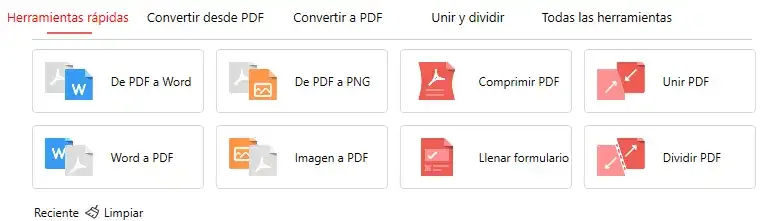
It converts between PDF and Word, Excel, PowerPoint, TXT, and JPG, with a batch mode for several files at once. It also creates PDFs from images and Word documents.
OCR (optical character recognition) extracts text from scanned documents in more than 30 languages. It’s handy for digitizing invoices, contracts, or paper notes. One important detail: according to review aggregators, turning a scan directly into an editable PDF is still in development, and OCR output comes as Word or TXT.
Tools to Organize and Shrink Your PDFs
It includes the usual document management functions:
- Merge and split files
- Compress a PDF so you can email it
- Add, delete, or reorder pages
- Create and fill in forms
PDFgear Copilot: Summarize and Ask Questions About Your PDFs with AI
The AI assistant, called Copilot, can summarize a document, answer questions about it, and handle tasks such as compressing or deleting a page through messages. According to its site, it runs on GPT-3.5.
It’s practical for studying: you can ask for a summary of an academic paper and then check the key facts against the original text. If you want to get more out of it, our guide to ChatGPT and Gemini prompts for students gives you formulas for asking for better summaries.
Is PDFgear Safe? What Runs on Your Device and What Goes to the Cloud
This is the part to read carefully. PDFgear states that it processes files locally and “never stores user data,” but that promise comes with nuances:
- Editing, conversion, and organizing in the desktop version: according to its own site, they run on your device.
- Copilot: its page mentions “enterprise-level encryption during data transmission” and a GPT-3.5 model. A model of that size doesn’t run on a personal computer, so it’s reasonable to assume the content you query is sent to an external service.
- Online tools: being web-based, the file is uploaded. One review aggregator reports a 50 MB per-file limit, a figure we couldn’t confirm on the official site.
Practical recommendation: don’t use Copilot or the online tools with contracts, medical records, bank documents, or third-party data. For those cases, stick to desktop editing and disconnect from the internet while you work.
Always check its current privacy policy before processing sensitive information.
PDFgear vs Adobe Acrobat Reader vs Online Editors: 2026 Comparison
| Feature | PDFgear | Adobe Acrobat Reader (free) | Online editors |
|---|---|---|---|
| Edit text and images | Yes | No (requires Acrobat Pro) | Depends on the service |
| Annotate and highlight | Yes | Yes | Usually yes |
| OCR on scans | Yes (30+ languages) | No (paid version only) | Limited or paid |
| Signing | Yes | Yes, basic | Depends on the service |
| Offline use | Yes (desktop) | Yes | No |
| Files uploaded to a server | With Copilot and web tools | No | Yes |
| Price | Free | Free (the full editor is paid) | Many use subscriptions or limits |
The PDFgear data comes from its official site, and Adobe’s comes from the known features of its free reader. Online editors vary too much to generalize: check each one’s limits.
Who Is PDFgear For? Use Cases and How to Get Started
Students, Teachers, and Professionals: Three Concrete Uses
- Students: annotating and highlighting academic papers, and asking Copilot for a summary before reading in depth.
- Teachers: merging several PDFs into one class handout, or extracting a few pages to share. If you prepare printable activities, the PDFs from our maze generators guide may come in handy.
- Professionals: correcting a figure in a contract, signing it and compressing it for sending, or digitizing scanned invoices with OCR.
How to Download and Install PDFgear for Free
- Go to the official PDFgear website and download the version for your system.
- Install it. According to its site, it doesn’t require registration or an account.
- Open a test PDF with no sensitive information and check that editing and exporting work the way you expect.
Always download from the official site or your device’s app store, never from third-party pages.
PDFgear Limitations and Frequently Asked Questions
Does It Leave a Watermark or Have Usage Limits?
Its main page doesn’t mention watermarks or caps on file size or page count. Even so, the service can change its terms, so test with a real document before using it for important work.
Does It Work Without an Internet Connection?
The desktop version does, for editing, converting, and organizing. Copilot and the online tools need a connection.
Can It Edit Scanned PDFs?
With OCR you can extract the text from a scan and take it to Word or TXT to edit it. Converting a scan directly into an editable PDF, according to review aggregators, is still in development.
What Does It Lack Compared with a Paid Editor?
Reviews on platforms such as G2 agree that it handles everyday tasks well but lacks some of the advanced tools of professional editors. For very demanding legal or print workflows, it may fall short.
Is PDFgear Worth It as a Free PDF Editor?
For everyday tasks like fixing text, signing, merging, compressing, or digitizing with OCR, PDFgear is a very capable free option, and its desktop editing is its strong point. The trade-off is privacy: use it without worry for ordinary documents, but don’t upload sensitive information to Copilot or its online tools.
Download the desktop version, try it on a practice PDF, and tell us in the comments which feature you found most useful. And if you’ve tried another free editor, let us know which one you recommend.
CuriosoTech Team
Equipo editorial de CuriosoTech. Preparamos guías de tecnología y educación con fuentes oficiales y las actualizamos cuando algo cambia.
Comments