
8 Commands to Revive Windows: Fix Your PC Without Reinstalling
DISM, SFC, CHKDSK and 5 more commands to repair Windows, find out what's slowing your PC down and fix internet issues, in the right order.
Your laptop takes three minutes to boot. The taskbar won’t respond, websites won’t load, and every now and then a blue screen flashes by before you can even read it.
The temptation is obvious: wipe everything and start over. But that means an entire afternoon reinstalling programs, hunting for license keys and recovering files… when the problem can often be solved with a couple of lines of text.
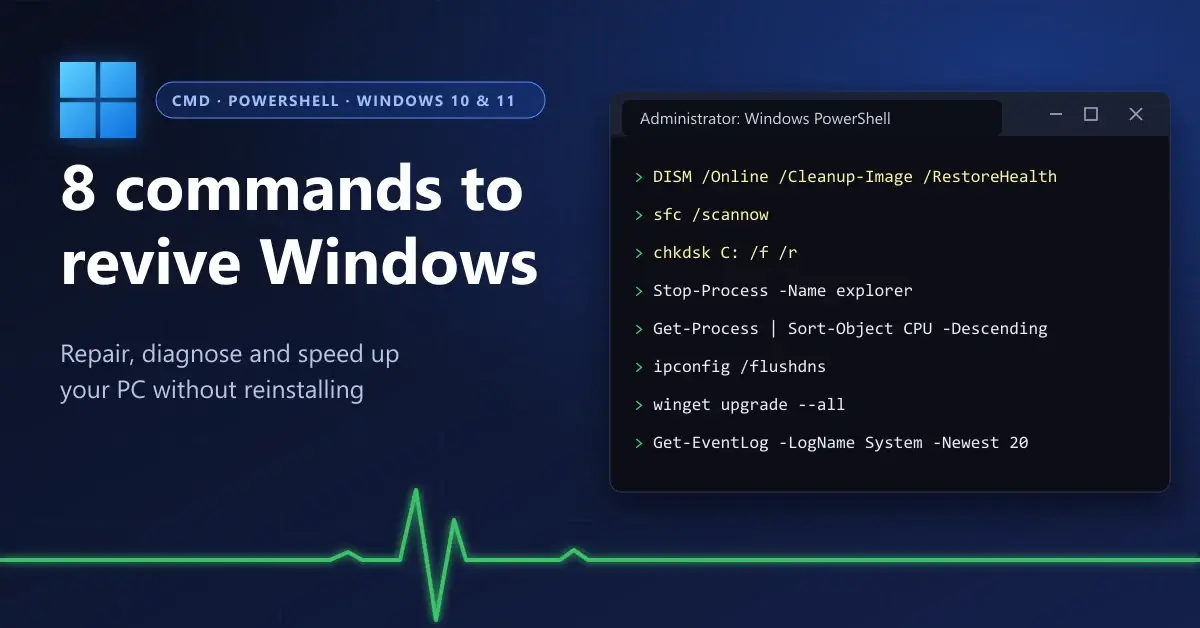
Windows ships with repair tools most people never touch. In this guide you’ll learn 8 commands to repair Windows 10 and 11 and revive your PC from the terminal: what each one does, when to use it and in what order to run them so you don’t waste time.
How to Open the Terminal as Administrator in Windows 10 and 11
Three of these commands modify protected system files, so they need administrator privileges. Without them, all you’ll get is an access denied error.
- Press Win + X (or right-click the Start button).
- On Windows 11 choose Terminal (Admin); on Windows 10, Windows PowerShell (Admin).
- Accept the User Account Control prompt.
CMD or PowerShell? DISM, sfc, chkdsk, ipconfig and winget work in both. Commands with a verb-noun format (
Stop-Process,Get-Process,Get-EventLog) are PowerShell-only. When in doubt, use PowerShell: it handles all eight.
Here’s the full toolkit at a glance:
| # | Command | What it’s for | Admin required? | Approx. time |
|---|---|---|---|---|
| 1 | DISM /Online /Cleanup-Image /RestoreHealth |
Repair the Windows image | Yes | 10-30 min |
| 2 | sfc /scannow |
Restore system files | Yes | 5-20 min |
| 3 | chkdsk C: /f /r |
Fix disk errors | Yes | Minutes to hours |
| 4 | Stop-Process -Name explorer |
Unfreeze the interface | No | Seconds |
| 5 | Get-Process | Sort-Object CPU -Descending |
Spot heavy processes | No | Seconds |
| 6 | ipconfig /flushdns |
Fix DNS issues | No | Seconds |
| 7 | winget upgrade --all |
Update every app | No* | Varies |
| 8 | Get-EventLog -LogName System -Newest 20 |
Find the cause of a failure | No | Seconds |
*Some installers ask for administrator confirmation during the update.
If you’ve never used a terminal, don’t worry. The logic is the same as in our Git tutorial from scratch: you type an instruction, press Enter and read the response.
Commands to Repair Windows: DISM, SFC and CHKDSK
These three are the core of any deep repair. Each one targets a different layer: the Windows image, the protected files and the disk everything else lives on.
1. DISM /RestoreHealth: Repair the Windows Image from Microsoft’s Servers
Think of DISM as the system’s family doctor. It checks the Windows image —the master copy the system pulls its components from— and, if it finds damaged pieces, downloads healthy versions from Windows Update.
DISM /Online /Cleanup-Image /RestoreHealth/Onlinemeans you’re working on the Windows installation that’s currently running./Cleanup-Imageenables cleanup and recovery operations./RestoreHealthdetects damage and repairs it automatically.
It goes first for a practical reason: SFC takes its replacement files from that very image. If the source is damaged, the next command has nowhere to get healthy copies from.
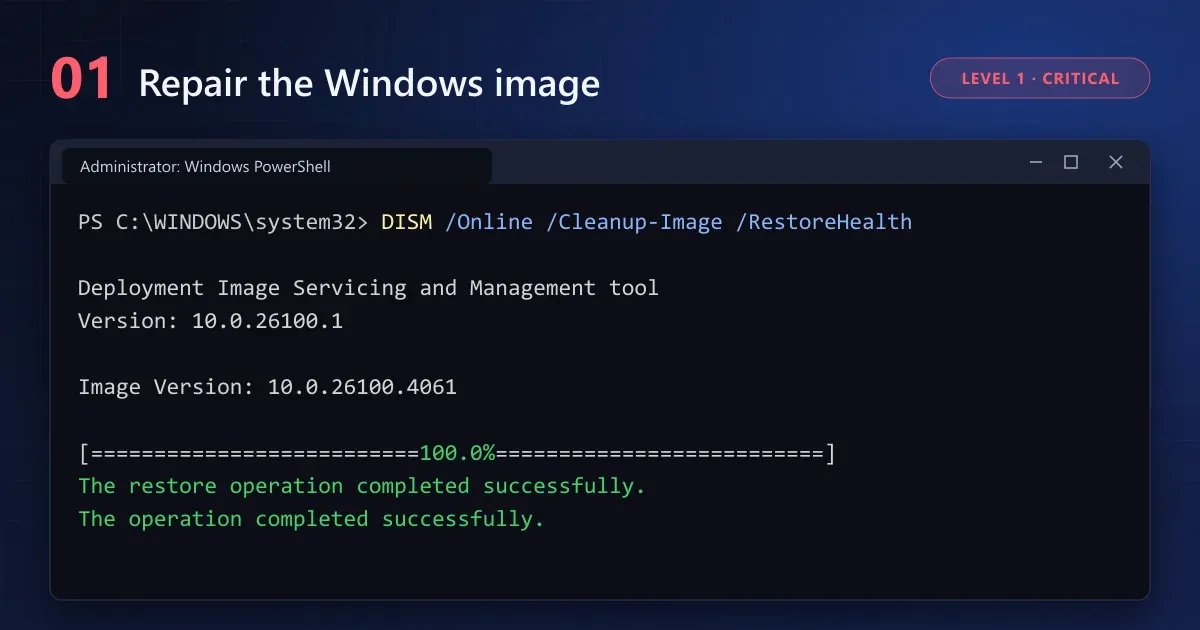
If the progress bar sits at 20% or 62.3% for several minutes, don’t close the window: that’s normal behavior and DISM keeps working in the background. You need an internet connection unless you point to another repair source with the /Source parameter.
Microsoft’s official documentation on repairing a Windows image describes two lighter variants: /CheckHealth, which tells you in seconds whether any damage has been flagged, and /ScanHealth, which runs a deeper scan without repairing anything.
2. SFC /scannow: Restore Corrupted System Files
With the image healthy again, the System File Checker steps in. It goes through Windows’ protected files one by one —DLL libraries, drivers, critical executables— and replaces any that are corrupted or modified.
sfc /scannowWhen it finishes, you’ll see one of three results:
- No integrity violations found: your system files are fine and the problem lies elsewhere.
- Found corrupt files and repaired them: restart your PC so the changes take effect.
- Found corrupt files but couldn’t fix some of them: run DISM again, restart and repeat SFC.
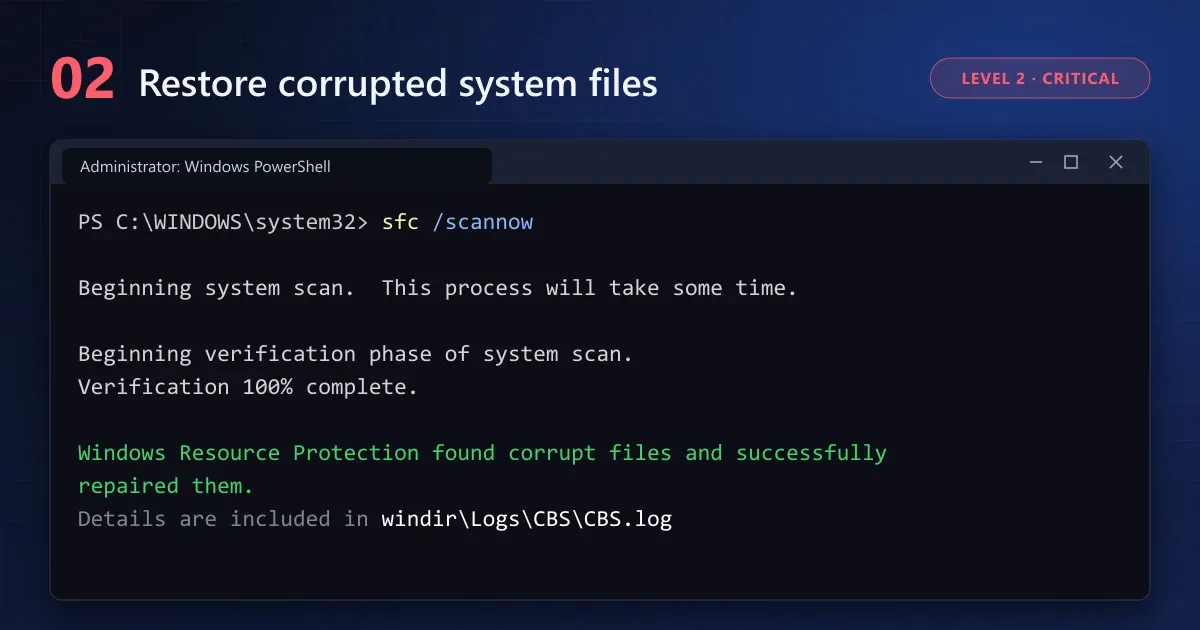
If you want to know exactly which files were replaced, the details are saved in C:\Windows\Logs\CBS\CBS.log.
3. CHKDSK /f /r: Find and Fix Disk Errors
When the failure comes from storage, neither DISM nor SFC can do much. That’s where chkdsk comes in, checking the NTFS file system and the disk surface.
/ffixes logical errors: damaged indexes, orphaned entries, lost clusters./rlocates bad sectors and recovers whatever information is still readable. It includes everything/fdoes.
Since drive C: is in use, Windows will ask you to schedule the check for the next restart. Answer Y, restart and let it finish without touching anything.
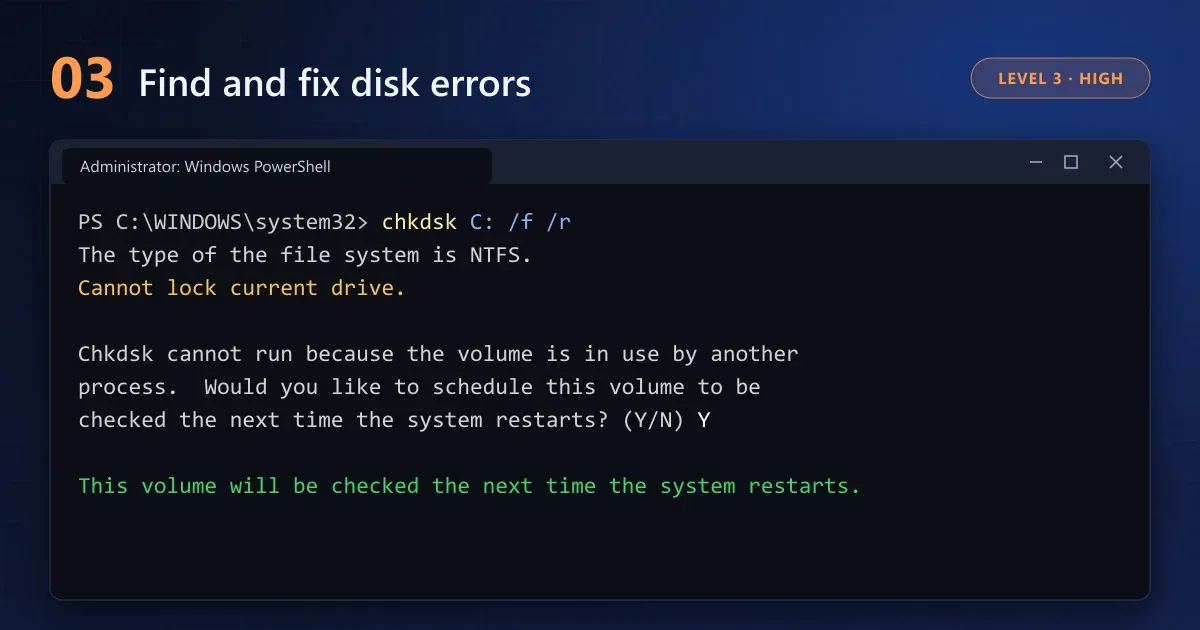
Back up first. If you suspect the disk is physically failing (strange noises, disappearing files, read errors), copy your important data before running
chkdsk /r. The scan puts heavy stress on the drive and can speed up its decline. On large mechanical hard drives it takes several hours: don’t turn off the computer halfway through.
On an SSD, /r adds little, because the drive’s own controller manages its bad blocks. To check its real condition, this command is more useful:
Get-PhysicalDisk | Select-Object FriendlyName, MediaType, HealthStatusIf HealthStatus shows anything other than Healthy, your priority is backing up your files and planning to replace the drive.
Commands to Unfreeze Windows and Find Out What’s Slowing It Down
Not every problem needs a deep repair. Sometimes the system is fine, but the interface got stuck or a single program is hogging resources.
4. Stop-Process -Name explorer: Restart Explorer Without Rebooting Your PC
Frozen taskbar, Start menu that won’t open, desktop icons that don’t respond. The culprit is usually explorer.exe, the process that draws almost the entire Windows interface.
Stop-Process -Name explorerThe taskbar disappears for a moment and Windows relaunches Explorer on its own, this time fresh. Your open programs keep running; only folder windows get closed.
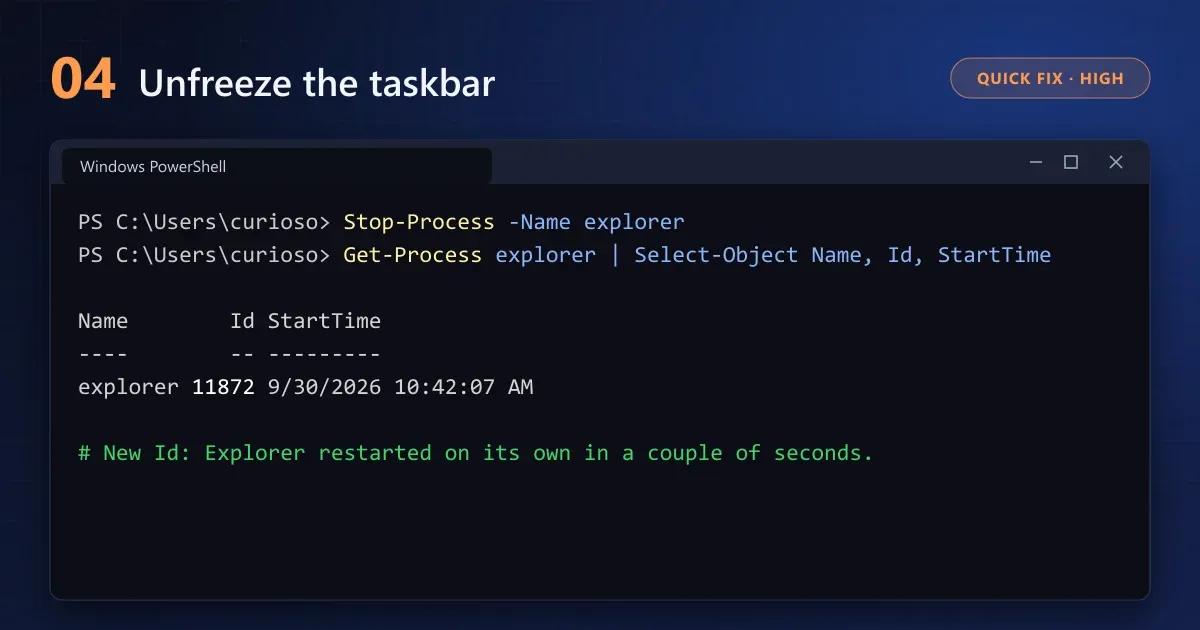
Is everything so frozen you can’t open the terminal? Press Ctrl + Shift + Esc, go to Run new task and type powershell. If Explorer doesn’t come back by itself, launch it with Start-Process explorer.
Keep in mind this is a lifeline, not a cure. If the freezing happens every day, the cause is somewhere else (a graphics driver, a context menu extension, damaged files) and it’s worth going back to DISM and SFC.
5. Get-Process: Find Out Which Process Is Eating Your CPU
When your laptop is slow for no obvious reason, this command works like a process hunter: it lists everything that’s running and sorts it from highest to lowest processor usage.
Get-Process | Sort-Object CPU -Descending | Select-Object -First 10We added Select-Object -First 10 so you only see the top ten; without that filter, the list can easily go past 200 processes.
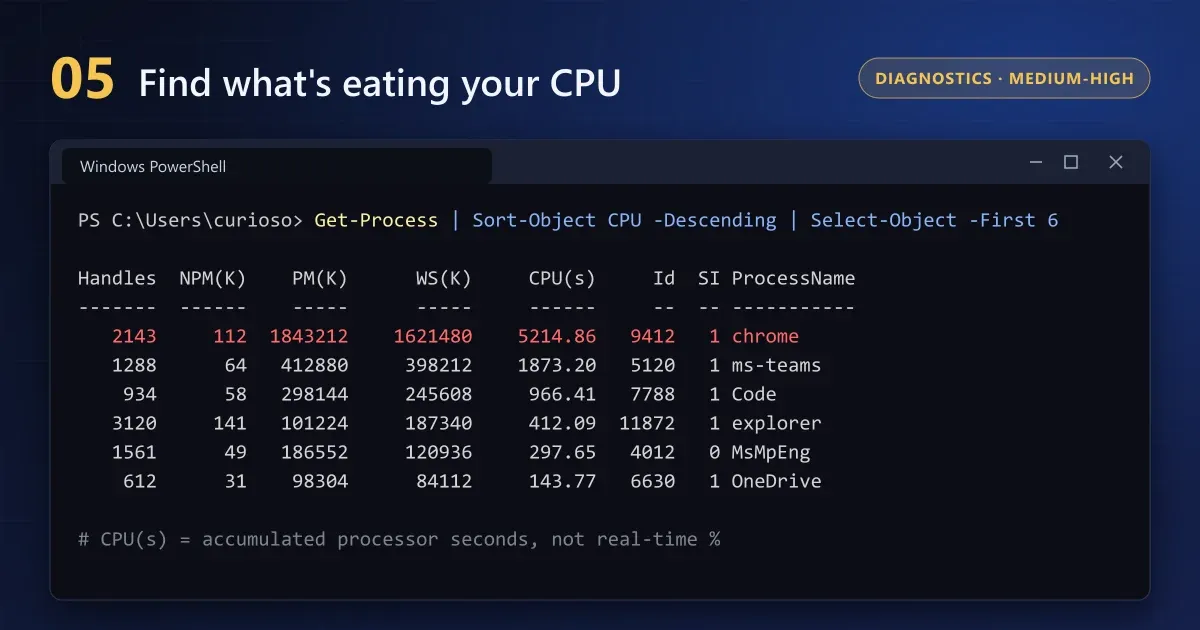
The detail almost nobody mentions: the
CPU(s)column isn’t the current usage percentage, but the accumulated processor seconds since each process started. A browser that’s been open for three days can top the list without using anything right now. To see real-time usage, open Task Manager with Ctrl + Shift + Esc.
If what’s running out is RAM, this variant sorts by memory usage and shows it in megabytes:
Get-Process | Sort-Object WorkingSet64 -Descending | Select-Object -First 10 Name, Id, @{Name='RAM (MB)'; Expression={[math]::Round($_.WorkingSet64 / 1MB)}}To close a specific process, use its ID: Stop-Process -Id 9412. Before you do, look up the name if you don’t recognize it. MsMpEng, for example, is the Microsoft Defender antivirus and you shouldn’t touch it.
Commands to Fix Your Internet and Keep Your Programs Up to Date
6. ipconfig /flushdns: Fix Websites That Won’t Load
Every time you visit a site, Windows stores its IP address in the DNS cache so it loads faster next time. If that entry becomes outdated or corrupted, you get errors like DNS_PROBE_FINISHED_NXDOMAIN or pages that load for everyone except you.
ipconfig /flushdnsThe command clears that cache and forces Windows to look up addresses again. It takes a second and has no side effects.
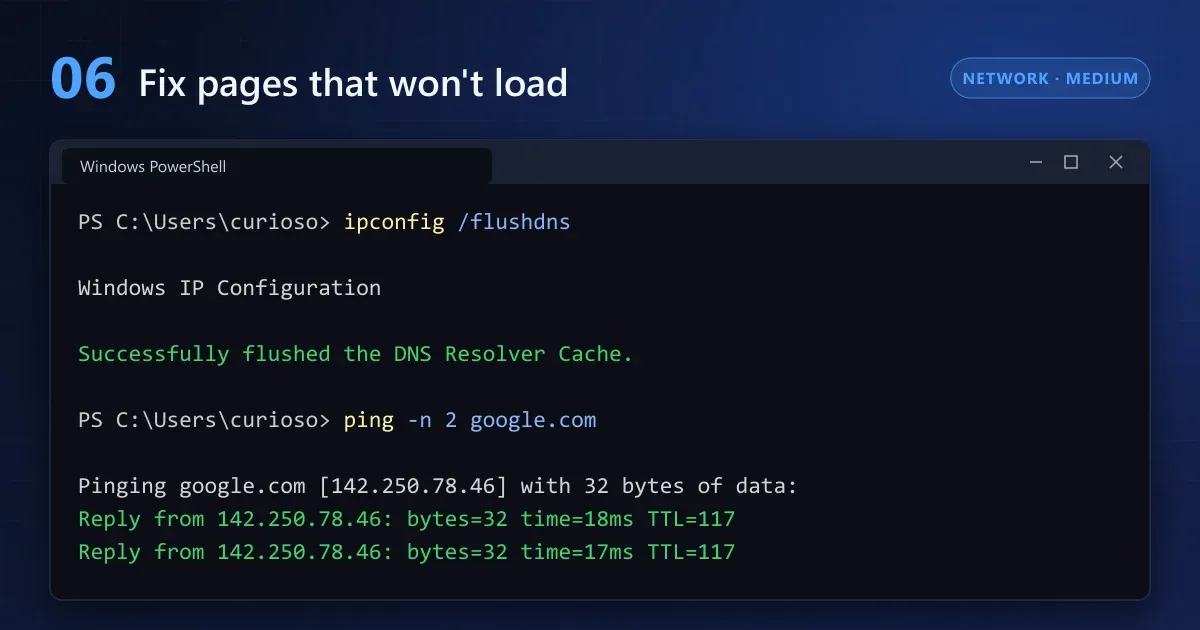
If the connection still fails, escalate with these two steps:
ipconfig /releasefollowed byipconfig /renew: asks the router for a new IP address.netsh winsock reset: resets Windows’ network configuration (requires administrator and a restart).
That said, if your router has lost its connection or your provider has an outage, no command will fix it. Try from your phone on the same network first.
7. winget upgrade –all: Update All Your Apps at Once
winget is Windows’ official package manager, included in Windows 11 and Windows 10 (version 1809 or later) through App Installer. With a single line it finds updates for every program it recognizes and installs them, without visiting websites or downloading installers one by one.
winget upgrade --allIf you’d rather review before installing, run just winget upgrade: you’ll see the list of pending updates without changing anything.
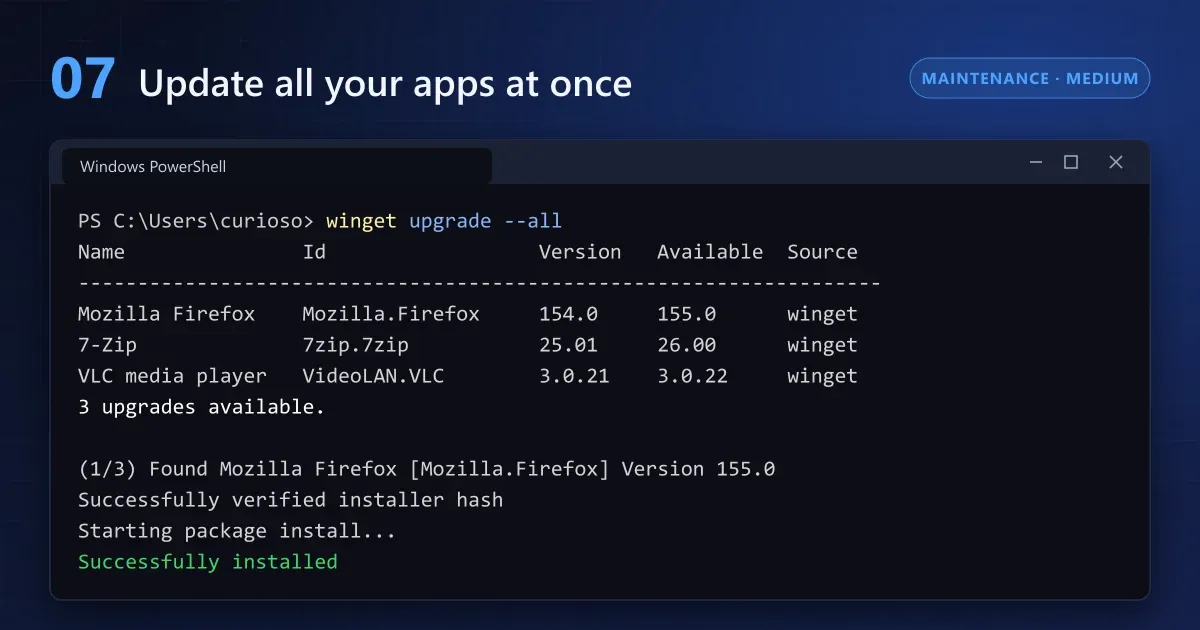
Why is it in a repair guide? Because outdated software causes compatibility failures and, above all, leaves security holes open. Vulnerable dependencies are among the risks in the OWASP Top 10 for web security, and the same principle applies to the programs on your PC.
It’s worth knowing its limits:
- It only updates apps available in the winget repository; very niche apps or those with their own store are left out.
- It skips programs whose version it can’t identify; add
--include-unknownto include them. - Some apps need to be closed before they can update.
- To avoid being asked about each package’s terms, add
--accept-source-agreements --accept-package-agreements.
Every option is covered in the official winget documentation.
How to Find the Cause of a Failure with the Windows Event Log
8. Get-EventLog: Read the Latest System Events
Windows writes everything down: services that crash, drivers that fail to load, unexpected shutdowns, disk errors. This command shows you the 20 most recent entries in the system log without opening Event Viewer.
Get-EventLog -LogName System -Newest 20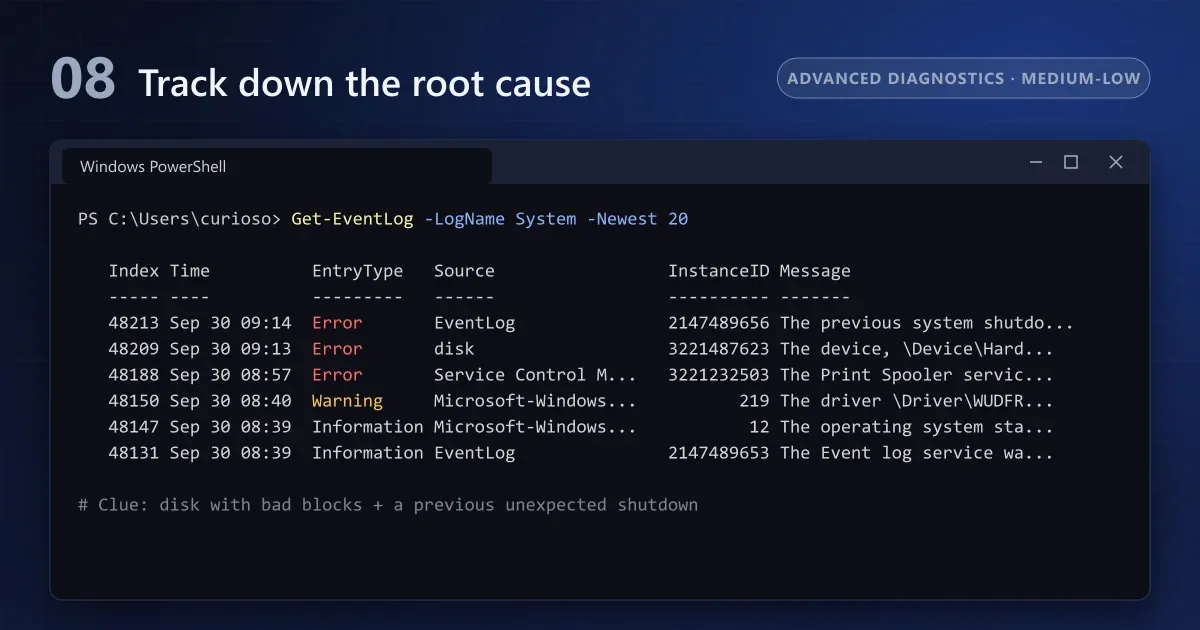
The list is usually full of informational messages. To go straight to the problems, filter for errors only and show the event ID, which is what actually helps you investigate:
Get-EventLog -LogName System -EntryType Error -Newest 20 | Select-Object TimeGenerated, Source, EventID, MessageThese are the IDs most worth recognizing:
- 41 (Kernel-Power): the computer restarted without shutting down cleanly. It could be a power cut, overheating or a faulty power supply.
- 6008 (EventLog): the previous shutdown was unexpected.
- 7 (disk): the disk reported a bad block. Back up your data and run chkdsk.
- 7031 and 7034 (Service Control Manager): a service terminated unexpectedly.
- 1001 (BugCheck): record of a blue screen, including its error code.
A single error doesn’t mean something is broken: Windows logs harmless failures every day. What matters is the pattern, meaning the same event repeating or one that matches the exact time of the problem.
One last technical note: Get-EventLog only exists in Windows PowerShell 5.1, the version that comes installed with Windows. In PowerShell 7 the equivalent is Get-WinEvent -FilterHashtable @{LogName='System'; Level=1,2} -MaxEvents 20, which also explicitly includes critical events.
Which Order Should You Run the Commands In? A Rescue Plan by Symptom
You don’t need to run all eight every time. Pick based on what’s happening to your computer:
| Symptom | Recommended commands |
|---|---|
| Windows is slow in general | 5 → 7 → 1 → 2 |
| Frozen taskbar or Start menu | 4 (and 1 → 2 if it keeps happening) |
| Blue screens or errors when opening programs | 8 → 1 → 2 |
| Noises, disappearing files or read errors | Backup → 3 → 8 |
| Websites that won’t load | 6 → release/renew → winsock |
| Monthly preventive maintenance | 7 → 1 → 2 |
Full Sequence for a Deep Windows Repair
If the system is in really bad shape, follow this order:
- Back up your important files to an external drive or the cloud.
- Run
chkdsk C: /f /rand restart. If the disk is damaged, no other repair will hold. - Run
DISM /Online /Cleanup-Image /RestoreHealth. - Run
sfc /scannow. - Restart and check the event log to confirm the errors are gone.
When These Commands Aren’t Enough
Some problems can’t be solved from the command line:
- Damaged hardware: faulty RAM, a dying disk or an unstable power supply need replacing.
- Malware: these commands don’t remove viruses. For that, run a full or offline scan with Microsoft Defender.
- Problematic drivers: roll back or update the driver from Device Manager.
Before reinstalling from scratch, you still have two middle-ground options: go back to a restore point or, on Windows 11, reinstall the system through Windows Update from Settings > System > Recovery, which keeps your files and apps.
Your Windows First Aid Kit, Always at Hand
Most “my PC is done for” moments can be fixed long before a clean install. DISM and SFC repair what’s broken, chkdsk looks after the disk, and the other five tell you what’s going on and keep the system in shape.
Bookmark this guide: the next time Windows freezes, you’ll be five minutes away from a diagnosis. And share it with that friend who reinstalls at the first sign of trouble.
If you want to keep equipping your PC with free, no-strings-attached software, check out our review of PDFgear, the free PDF editor with no watermarks.
CuriosoTech Team
Equipo editorial de CuriosoTech. Preparamos guías de tecnología y educación con fuentes oficiales y las actualizamos cuando algo cambia.
Comments